Adding and managing people
Employees holds one record for each person in your organisation, used across Pair.
Summary cards show how many people you have, by type.
Status tabs split people into Active, All, Inactive and Removed.
Search by name, email or phone, and filter by type.
Checks show each person's ID, right to work, bank details and other checks, with a count of how many are done.
MFA shows whether each person uses two-factor sign-in.
Add people
For admins
Select Add Employee.
Choose who you're adding: a Team member, who gets access through the access level you choose, or a Casual worker.
Enter one or more email addresses, separated by commas or spaces. Everyone you add gets the same access level.
Choose their access level. You can change it later. Manage access levels opens the access levels if you need a different one.
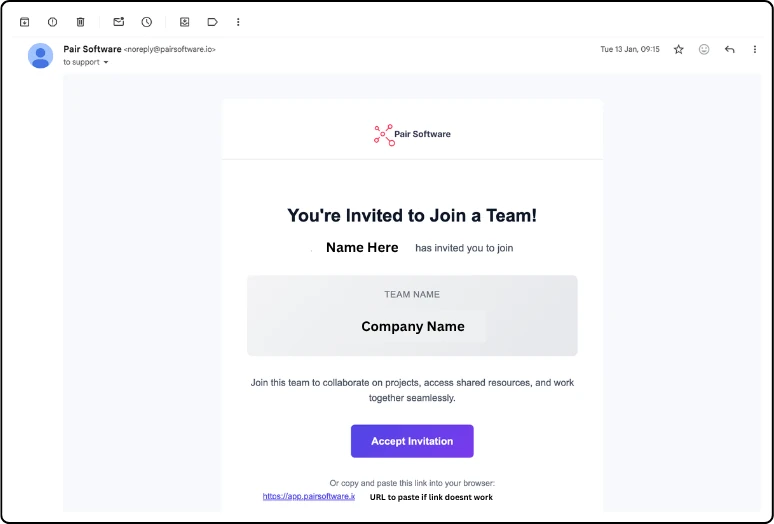
Select Send invitation. Each person gets an email straight away inviting them to join. Its link can be used once and is valid for 7 days, and it takes them through setting their password.
People hired through Apply
For admins
People you hire in Apply are added for you, with the details they gave. They start as an Inactive casual worker, so you can hire several people, then let them in when you're ready.
If they need more than their shifts and profile, change them to a team member first (see below).
Turn on Activate Account on their profile, or select Activate from the menu beside their name in the list.
The invitation email is sent automatically.
Changing someone's access
For admins
You can change anyone between team member and casual worker at any time, in either direction.
In the list, select the menu beside the person's name, then Change access.
Choose Team member or Casual worker:
Team member: gets access through their access level.
Casual worker: sees their shifts and profile only, in the Pair app and on the web.
For a team member, choose their access level. It decides what they can see and do. Manage access levels opens the access levels if you need to change one or create a new one.
Select Save access.
The same menu also has View Profile, View Shifts, Activate and Remove User.
The profile shows when the last email went and its status. Select View Details to see more.
Signing up the right way: people must join through the invitation email. If they sign up from the Pair website instead, they get a separate account and can't join your organisation.
Removing and restoring access
For admins
To stop someone signing in, turn off Activate Account. Their record stays, under the Inactive tab.
To let them back in, turn it on again. They get an email to reset their password.
The Removed tab lists people taken out of your organisation.
Changing someone's type or access level doesn't send them an email. They see the change the next time they sign in, so ask them to sign out and back in if they need it straight away.
Updated 2026-10-24