Signing in and two-factor
Your own details, how you sign in, and what Pair emails you.
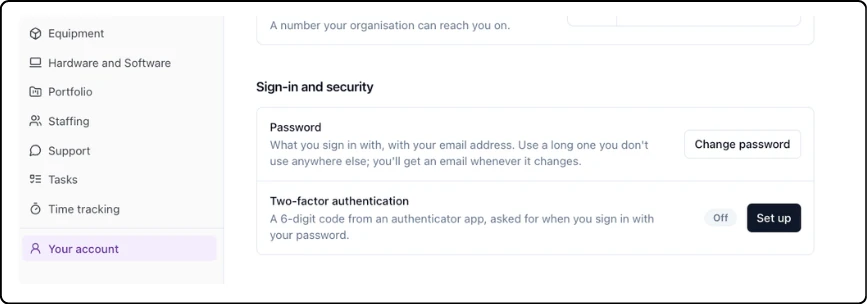
Two ways to sign in
Email and password: sign in with your email address and a password. Use a long password you don't use anywhere else. Change it in Sign-in and security › Change password.
Sign in with Google: use your Google account instead of a Pair password. Your Google account's email must be the one your organisation added you with.
Turn on two-factor
Two-factor adds a 6-digit code from an authenticator app when you sign in with your password. A stolen password alone then isn't enough to get into your account. If you sign in with Google, Google's own 2-step verification protects your account instead, so turn it on in your Google account.
In Sign-in and security, turn on Two-factor authentication.
Scan the QR code with your authenticator app.
Save your backup codes somewhere safe. You can make new ones at any time.
From then on, sign in with your password and a code.
Trusted devices: choose Trust this device when you sign in, and that browser skips the code for 30 days. Revoke any device you don't recognise.
For admins: to require two-factor for everyone, go to Settings › General › Users and access and turn on Require two-factor for everyone. People who sign in with Google use Google's own 2-step verification instead.
Good to know:
You'll get an email whenever your password changes.
To change the email you sign in with, contact support@pairsoftware.io.
Updated 2026-10-24